Welcome to our tutorial on inviting applications to access your Amazon Seller Central account. In this step-by-step guide, we'll navigate through the Book Manager to ensure that you can grant the necessary access to your EasyBookPrep tools. By following these instructions, you will be able to successfully manage this application integration with ease, enabling EasyBookPrep to assist with your Amazon FBA prep.
To begin, you will need to access our proprietary Book Manager system. You can access the Book Manager here: https://rispent.quickbase.com/nav/app/bnmx7saer/table/bpgmf43jg/action/q?qid=1
Once in the Book Manager, click on Client Accounts. Your specific account will then be displayed.
3. View Your Account
Go ahead and hit the View button (icon if an ‘eye’ ) next to your account. After clicking, you will need to scroll down to continue.
4. Locate the Prep Center Section
On the page for your account, scroll down for the Prep center section. This area contains settings related to prep centers.
5. Find EasyBookPrep
Within the Prep Centers settings, locate EasyBookPrep and hit the Eyeball button (or "view" icon) next to it.
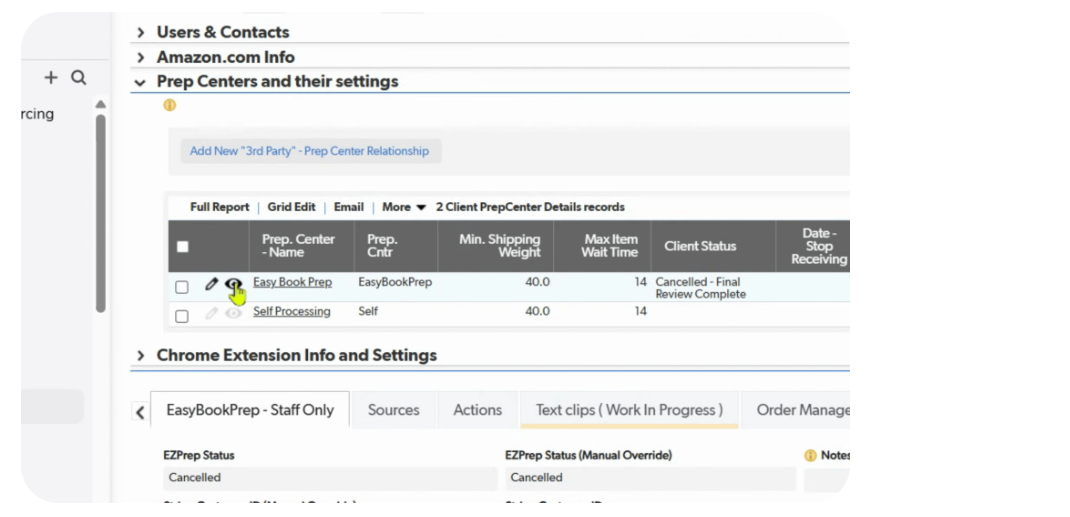
This action will load a new page. On this page, you will find a prominent green button that says, "give Prep center access to your Amazon Seller Central account."
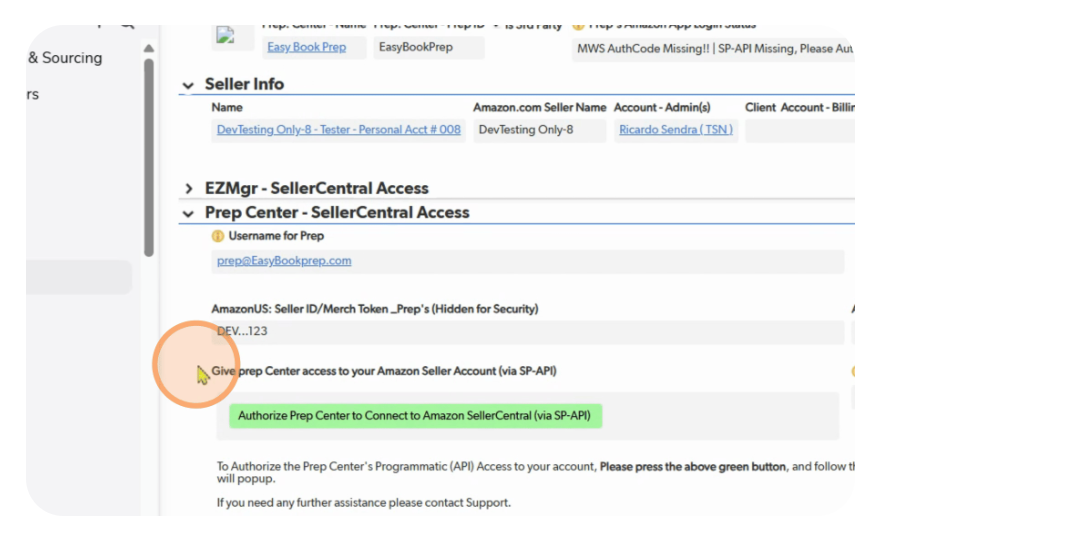
Click on this green button to proceed with granting the necessary access for the EasyBookPrep tool.
A new window will open. This window will request you to confirm that you want EasyBookPrep to have access to your Amazon Seller Central account.
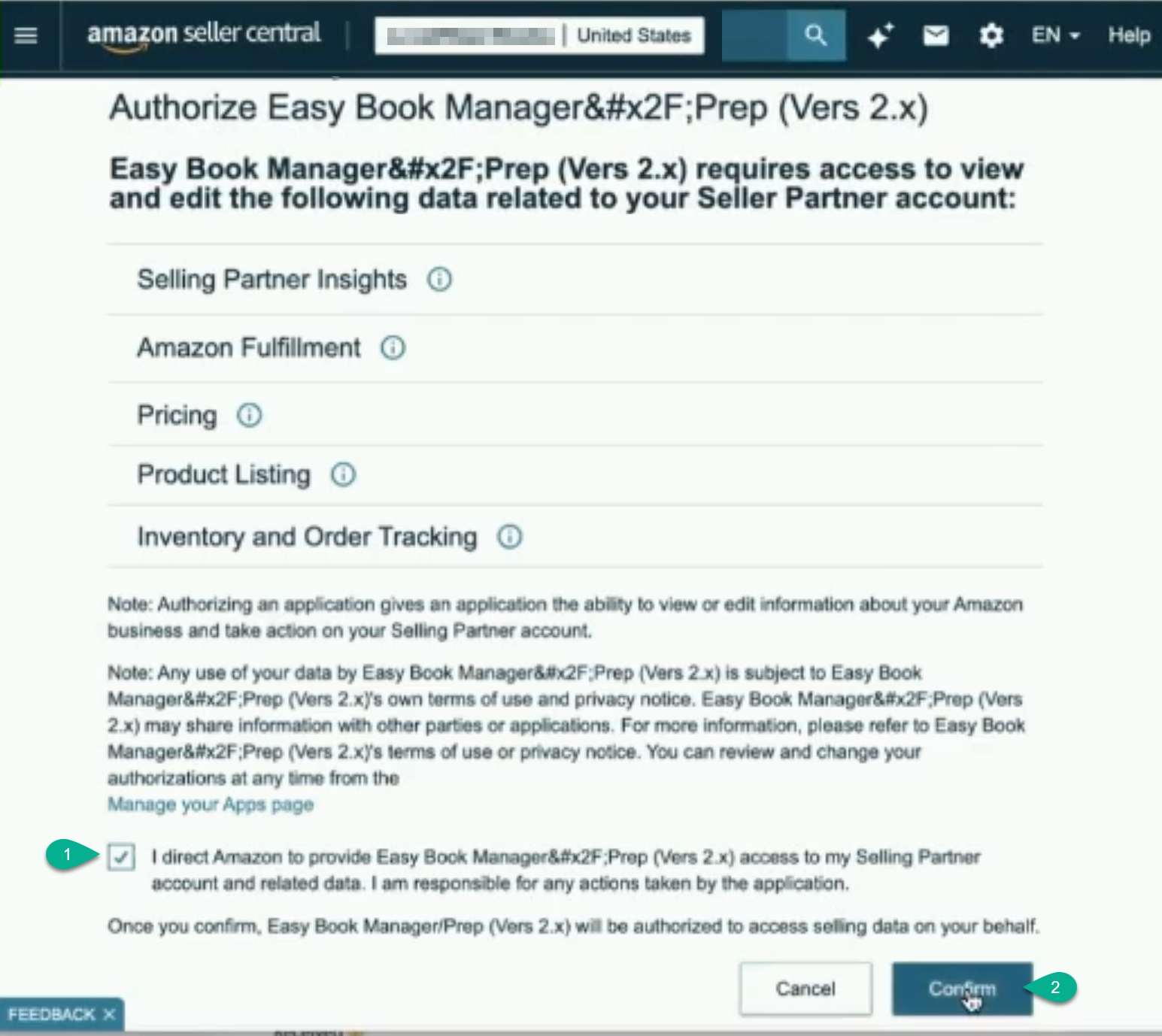
When the confirmation window opens, expand it (if necessary) and follow the instructions provided by Amazon within that window to complete the process of granting access.
Check the box confirming that you agree to grant this access. Then, proceed by hitting the Confirm button.
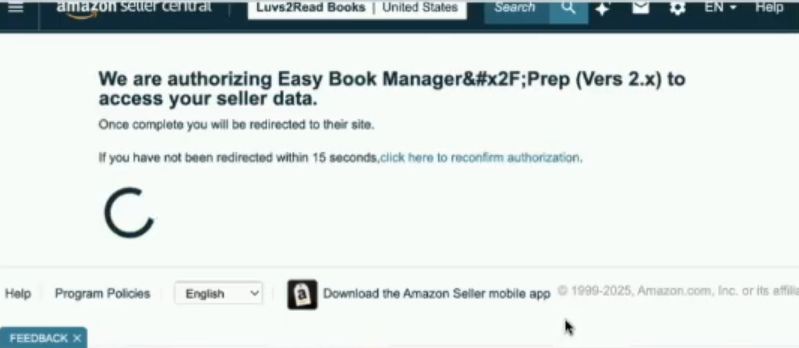
After your confirmation, a new page will load. You should see a green banner across the top of this page, indicating that the operation was successful, once the green banner appears, you will automatically be forwarded back to the Book Manager. At this point, your task of granting EasyBookPrep access will be complete.

If you encounter an error message at any point during this process, it is important to copy the exact error message. Send this copied message to our Support team at [email protected] for assistance.
For any additional issues, you can rewatch the video tutorial associated with this process (accessible via the initial link: https://howto.easybookprep.com/doc/inviting-applications-to-access). If concerns persist after reviewing the video, please reach out to Support at [email protected].
By following these steps, you can successfully invite and enable the EasyBookPrep application to access your Amazon Seller Central account, facilitating seamless operations for your business. If you have any questions or need further assistance, don't hesitate to reach out for support.
Using the EZP Client Support Tracking System
Preparing Your Books for Shipment to EZP Client Support
No Green Banner After Confirmation/Not Redirected OR an Error Message Appears: As stated in Step 14, if you see an error message, copy it exactly and send it to [email protected] for our Support team to diagnose. This is the most crucial step for error handling specific to this process, as the error provides vital diagnostic information.
Security of My Amazon Account: Granting access through this method connects the EasyBookPrep application to your Amazon Seller Central account. This is a standard and secure method designed by Amazon for third-party tools to integrate. EasyBookPrep will only access the data and functionalities specifically required to provide its services (e.g., managing inventory, creating shipments) as authorized by the "EasyBookPrep Manager access" level. Your direct Amazon login credentials are never shared.
What specific data or permissions does "EasyBookPrep Manager access" grant? This access level allows the EasyBookPrep application to interact with your Amazon Seller Central account to facilitate services like managing FBA inventory, creating shipment plans, and possibly accessing other reports necessary for efficient prep and listing. It is designed to give the application the necessary permissions for its intended functions without granting full administrative control over your entire Amazon account.
Can I revoke this application's access later if needed? Yes, you can revoke access to any third-party application granted permissions to your Amazon Seller Central account. This is usually done within your Amazon Seller Central settings under "User Permissions" or "Manage Your Apps." You should only revoke our access only after completing the cancellation offboarding process for EasyBookPrep, please contact [email protected] for specific instructions to ensure a smooth cancellation & disconnection.
Q: Do I need an Amazon Seller Central Professional account for this application integration?
A: Yes, Amazon Requires a Professional Seller Central account for Programmatic (SP-API) Access.
Q: How long does this application access last once granted?
A: Once you grant this application access, it typically remains active for a year after the access was granted. But you will need to review Amazon's policies to see if they are still requiring periodic re-authorization for third-party applications.
Q: Is there a video tutorial available for these steps?
A: Yes, a video tutorial is available you can access it via: https://howto.easybookprep.com/doc/sp-api-grant-application-access
Q: What is the "Book Manager"?
A: The "Book Manager" is EZP Client Support's proprietary system, which serves as your central hub for managing your items orders, your client Prep account settings and integrations with external services like Amazon Seller Central for the EasyBookPrep application. You can access it directly at: https://rispent.quickbase.com/nav/app/bnmx7saer